Why Your App Login Works in Preview but Breaks After You Publish
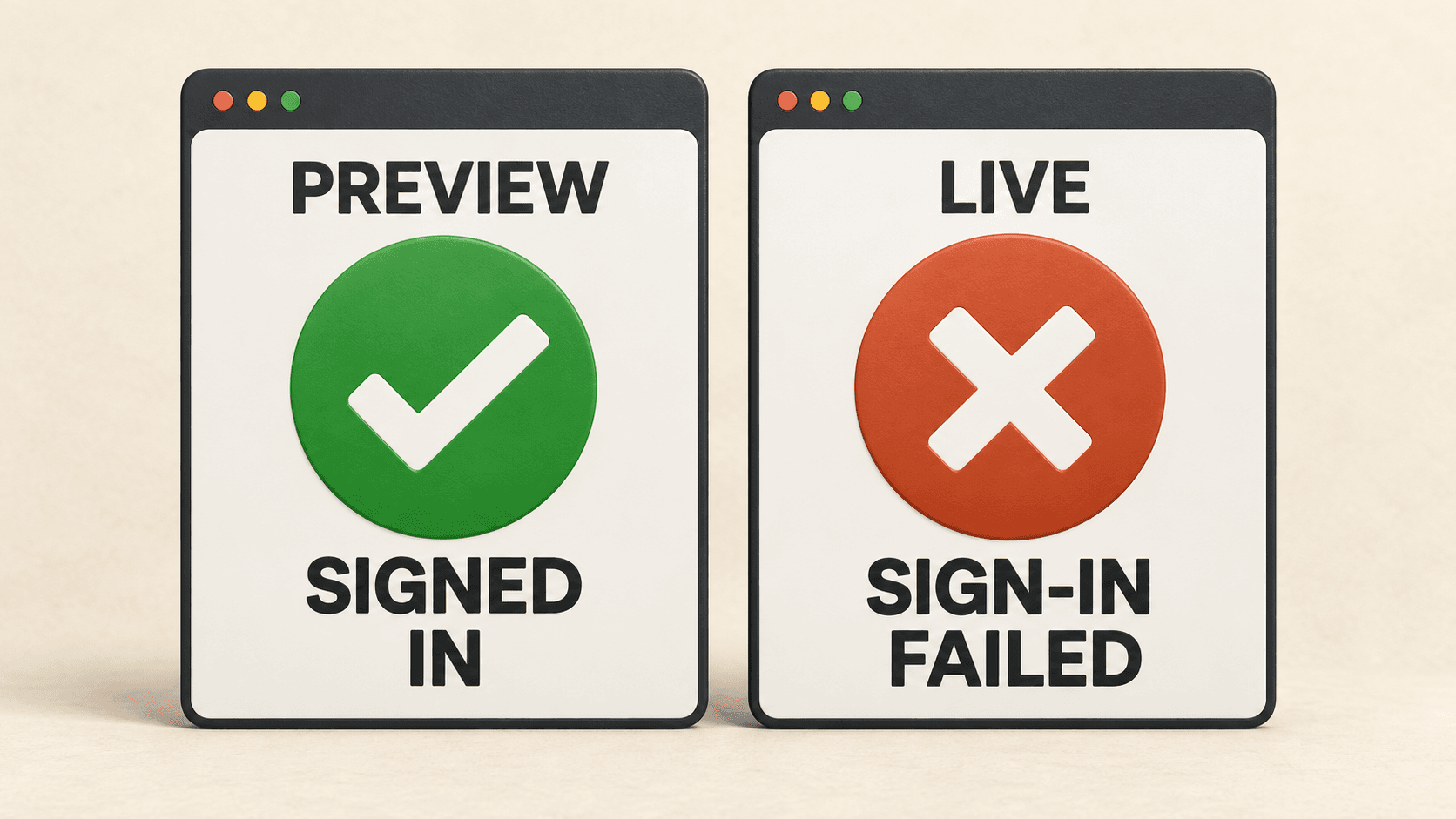
You sign in while testing your app. You publish it, open the public address, and the same button sends you somewhere else. Or you reach your account, reload the page, and find yourself signed out.
Start by finding what changed. Replacing the login code before you know which step failed gives you more moving parts to untangle. Have AI inspect one attempt on the public site, name the cause, and repair that part.
This guide is for an existing Next.js app that uses Supabase to manage accounts. Your test version already signs people in. You will give AI the two app addresses and the sign-in method to check, then work through four prompts in order.
If signup and login still need setting up in both versions, start with the account-setup guide first.
Step 01Check the published version
Use the address you would send a customer. A fresh preview can contain your latest fix while the public address still opens an older version. Until AI checks what is running at that address, it can end up fixing code your users never reach.
Give it the working test address too, or access to the app running on your computer. The comparison needs three things: which version each address opens, which Supabase project each uses, and where each sends people after sign-in. A different project may be intentional. AI needs to establish what you meant to publish before calling a difference a mistake.
The settings for your public app can differ from those used in testing. If Vercel runs your app, these groups are called Production and Preview. Vercel lets each group have its own settings (opens in a new tab). A value saved for Preview therefore does not show what the public app received.
You do not need to hunt through every settings page yourself. AI can inspect the app, check its installed tools, and use the service connections you have allowed. If it lacks access, it should help you connect the relevant service. An account login or access grant may need you; the inspection can continue afterward.
If the public app does not load at all, deal with that publishing problem first. A missing site or the hosting service's access screen is a different starting point from your app rejecting a sign-in.
Check what the public address is running
This first prompt gives AI a concrete comparison before it changes anything. Replace the bracketed details. Use one app account made for testing, so the later checks have an account and expected page to follow.
Step 02Find where sign-in stops
Now follow one new attempt from the public address. The useful question is what worked immediately before it stopped. Seeing the Google account picker proves you reached Google. Seeing your app again proves you returned. Neither observation, by itself, shows that your app has recognized the right account.
When Google sign-in takes you away from your app through Supabase, there are two return trips. Google sends the result to Supabase, then Supabase sends you back to the app. The addresses receiving those returns are called callbacks. Supabase documents these two separate destinations (opens in a new tab). AI must compare the address on the failed trip with the setting for that trip.
A typed email code takes a different path. First check whether Supabase accepted it. If it did, investigate what your app did with that success. Supabase's email-code handling (opens in a new tab) does not automatically need the same return-page repair as Google sign-in.
Use the result you can see to choose the next check. Each row starts from a different stopping point; you do not need to work through them all.
An empty account page needs one more distinction. Can the app identify the right person when it fetches that page's information? Supabase checks identity and permission to read data separately (opens in a new tab). If the person is recognized, ask AI to identify the missing record or access problem. Rebuilding login will not create a missing record.
If the email never arrives, the code is rejected, or resending fails, use the email-code guide for that part. Continue here when the code is accepted but the published app still fails to keep you signed in.
Follow one sign-in attempt
Have AI observe the attempt and inspect the matching error details. A generic message on the page may hide the useful cause. The result should identify the last working step and the first failed step, with enough detail to choose one repair.
Step 03Have AI fix that specific cause
The repair should explain the result you just observed. If the app returns to the wrong address, correct the setting or code that chose it. Supabase uses the app's requested destination when it matches the allowed list (opens in a new tab); its Site URL supplies the default when no destination is specified. Check those values before adding a new return page.
If sign-in disappears on reload, inspect how the app remembers it. In a setup where Supabase is used by both the browser and the server, they share sign-in information through small browser records called cookies. Supabase's guide to sharing sign-in information (opens in a new tab) explains that handoff. AI should follow the existing code and repair the point where the information stops reaching the next page.
Some settings only reach users when you publish a newly built version. Building means preparing the app's code to run. Next.js can copy browser-visible settings whose names start with NEXT_PUBLIC_ into that prepared code (opens in a new tab). Saving a different value afterward does not replace the value inside an existing build.
We checked this with a small local Next.js 16.3.5 app. We built it with a made-up test-service address, then started that same build with a different address. The page it sent back still contained the first value, while a separate server check found the new one. Rebuilding changed the address in the page too.
That test used example addresses and no real sign-in service. It shows why a saved setting can differ from what the app uses; it does not diagnose your login. If AI finds this mismatch in your app, the repair includes a fresh build with the intended settings and publishing that version to the public address.
Keep the fix small enough to explain. Changing a return address should not become permission to accept every destination. Restoring account information should not mean removing its access rules. If the problem turns out to be missing data, have AI describe that separate task before it changes how people sign in.
Repair the cause and update the public app
This prompt asks AI to carry out the repair, including service settings and publishing when those actions are allowed. It should explain any public change before making it. If your existing instructions require approval, you can review the exact change at that point.
Step 04Repeat the full sign-in check
Return to the same public address and repeat the attempt that failed. Start a new sign-in from the button. Reusing an old return-page link can add a different problem because the temporary code in it may already have been used (opens in a new tab). For Google, finish in the browser that started the attempt.
Check the account you reach, not just the page design. Then reload, open an account-only page directly, and sign out. After signing out, open that private page again. The app should ask you to sign in before showing its private contents.
Have AI collect these results while you perform any personal login steps. If the original problem happened on your phone, repeat there too. A desktop pass does not tell you what happened on a device nobody tested.
If sign-in stops again, return to Step 2 with that observation. The first repair may have exposed another problem further along. Keep the working part and investigate the new stopping point instead of starting the whole setup over.
Check sign-in on the repaired public app
The final prompt checks the reader's experience from start to finish. Ask for observed results beside each action, so an unfinished check cannot hide inside a general claim that everything works.
Still having trouble?
Pull me into your project with @Vlad, your virtual co-founder. Or, if you'd rather work with the real me, set up a call.
Summary
When login works in testing but fails after publishing, start with the version your users actually open. Follow one attempt until you can name where it stops. Have AI fix the cause it can demonstrate, then repeat the full sign-in check at the same public address.
You should finish with a working sign-in and a plain explanation of what changed. That explanation matters the next time you publish. It gives you something specific to check instead of another round of guessing.

Vladislav Zhirnov
Sources
8 references- Vercel: Environment variables (opens in a new tab)vercel.com
- Supabase: Sign in with Google (opens in a new tab)supabase.com
- Supabase: Advanced server-side guide (opens in a new tab)supabase.com
- Supabase: Row Level Security (opens in a new tab)supabase.com
- Supabase: Redirect URLs (opens in a new tab)supabase.com
- Supabase: Creating a server-side client (opens in a new tab)supabase.com
- Next.js: Environment variables (opens in a new tab)nextjs.org
- Supabase: PKCE flow (opens in a new tab)supabase.com
Choose your next move